Connect it in Windows
Pair Bluetooth devices in Windows first. For 2.4G devices, plug in the receiver and select the correct device mode.
From first launch to everyday use
Start with device detection, then discover drag-to-reorder, device shortcuts, tray styles, desktop widgets, alerts, history, and game overlays without digging through release notes.
Do this first
Most “device not found” cases are solved by these three steps.
Pair Bluetooth devices in Windows first. For 2.4G devices, plug in the receiver and select the correct device mode.
Enable the matching brand plugin under Settings → Plugin Marketplace for 2.4G devices. PlayStation controllers, including PS4 / DualShock 4 and PS5 / DualSense controllers, also require the Sony plugin—even when connected over Bluetooth. Then return to the main window and choose Refresh Devices.
Return to the main window and click Refresh Devices. Once found, EasyBluetooth will continue updating its battery.
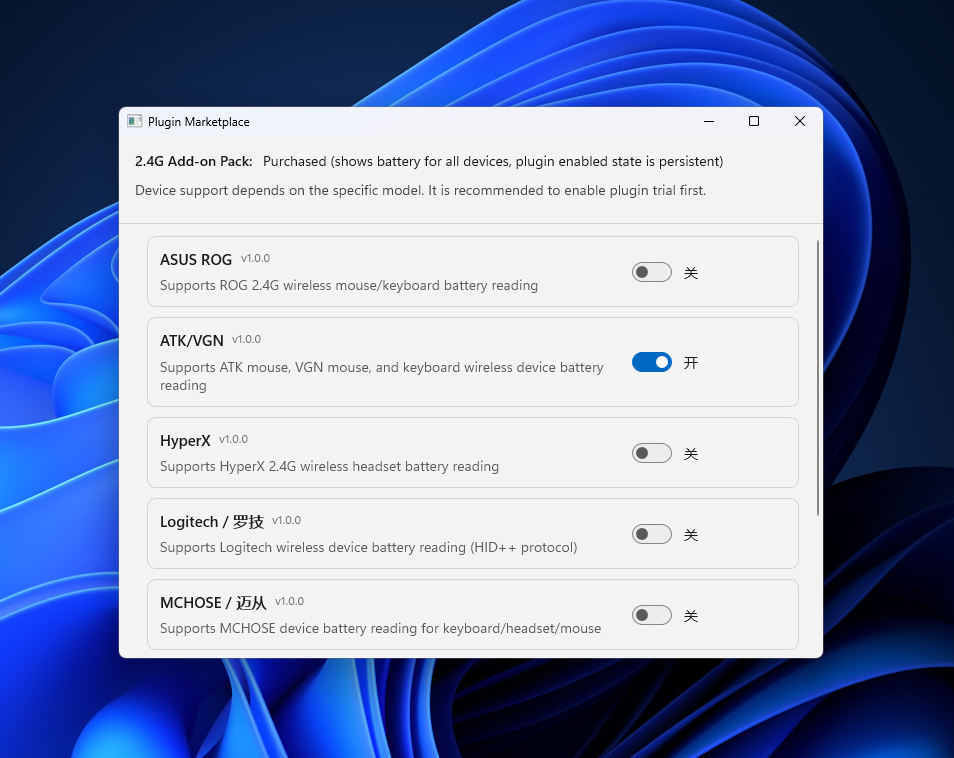
Important: Bluetooth-connected PS4 and PS5 controllers still require the Sony plugin.
Closing the main window does not have to exit the app. EasyBluetooth can keep running in the system tray.
Easy to miss
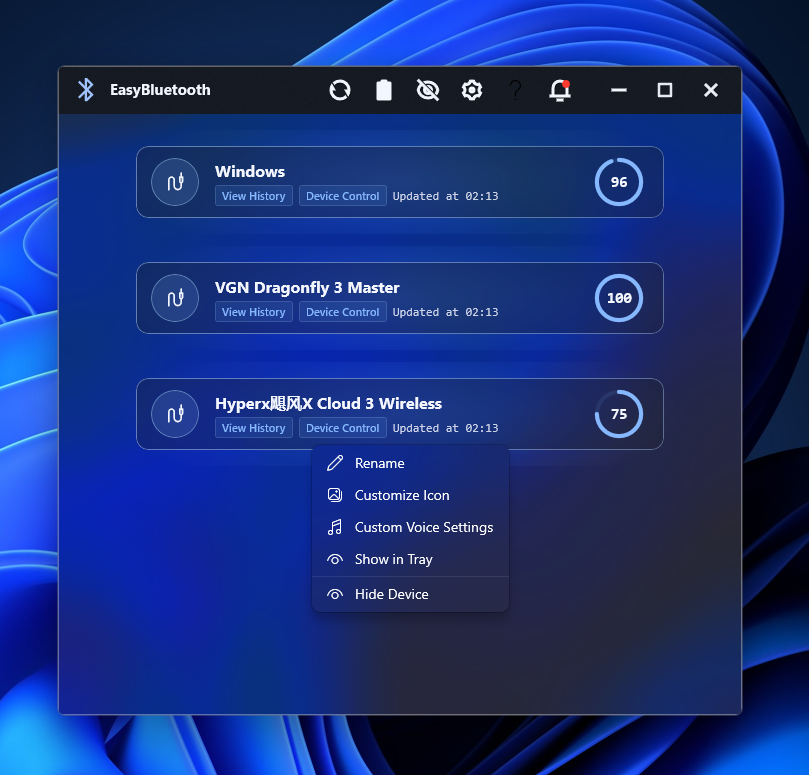
Hold the left mouse button on a device card, move it up or down, and release. This order also affects features that use the “first visible device.”
Rename, customize the icon, assign a device voice, show it in the tray, hide it, or split/unsplit it while using the widget.
Open View History for battery trends. Device Control appears only for models with a supported control protocol.
Use the crossed-out eye in the title bar to open the hidden list and restore a device.
Keep it on the desktop
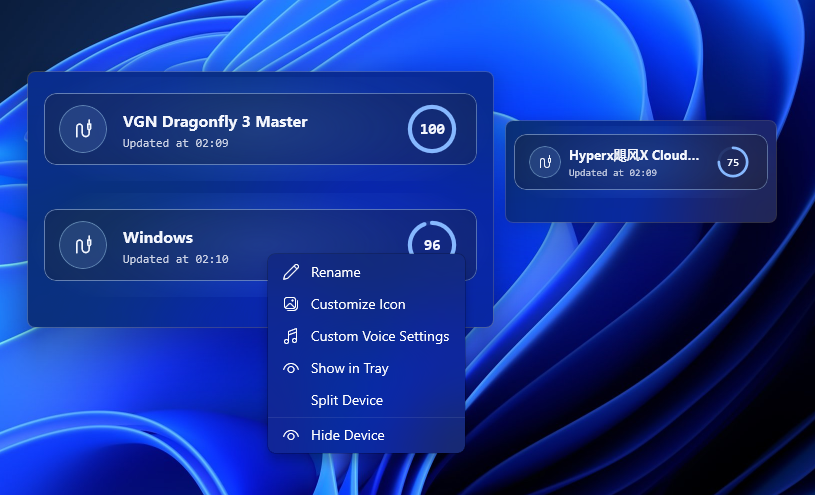
Drag the widget header to move it and resize from its edges. Window positions and sizes are saved automatically.
Choose always-on-top, bottom, mouse passthrough, or no background. Top and bottom modes are not hidden by Win + D.
Enable automatic height, edge snapping, and supported theme changes that follow Windows light/dark mode.
Save and use: Pro / Legacy VIPCheck battery at a glance
Automatically show the lowest valid battery among visible devices.
Prefer one device, then fall back to the lowest battery if it is unavailable.
Use the first connected device in your priority order, with a safe fallback.
Open the app, Plugin Marketplace, Data API, Refresh Devices, widget controls, OSD, entitlement refresh, Settings, Help, About, or Exit.
“Show in Tray” on a device is the quick fixed-device shortcut. Use Tray Display Settings for full fixed and priority rules.
Fit your routine
Choose a threshold and use Toast notifications, system sound, or custom voice alerts. Advanced voice settings can vary by device and threshold.
Adjust the AirPods RSSI threshold under Settings → General Settings. The default is -75 and changes take effect immediately. Lower the value if your connected AirPods frequently disappear at a normal distance; raise it to require a closer, stronger signal. A higher value means the AirPods must be closer.
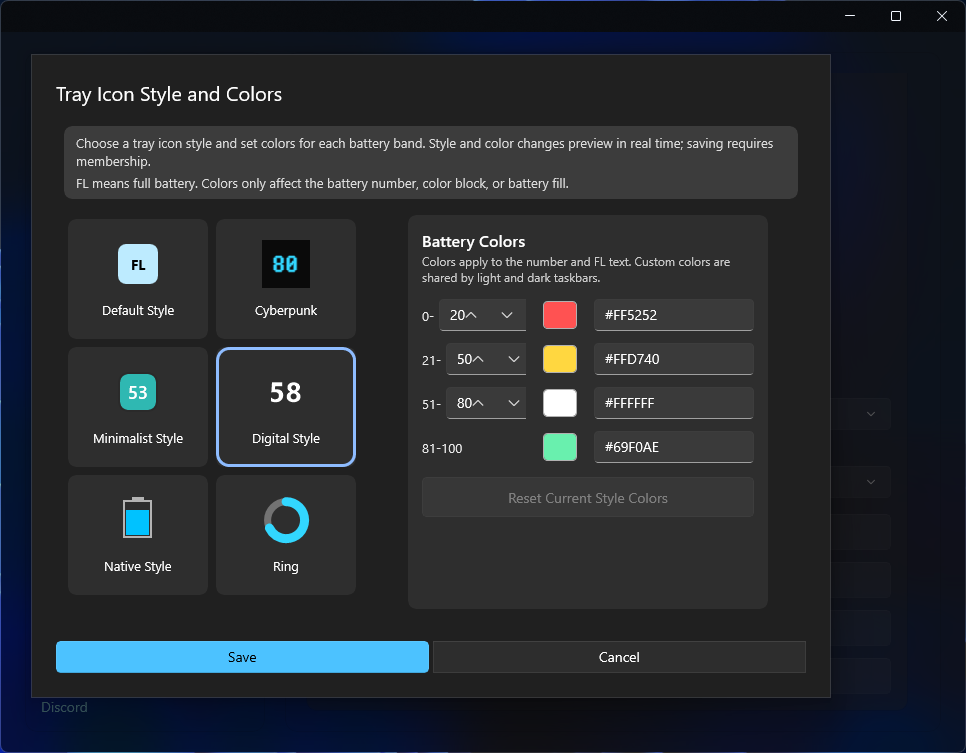
Preview a premium theme before saving it. You can also change the UI font, device icons, and tray appearance.
Review recent trends. Advanced analysis adds custom ranges, average drain, and estimated battery life.
Configure launch at startup, start minimized, Windows battery entries, updates, and language.
Export and import common settings. Accounts, tokens, logs, and battery history are deliberately excluded.
Open logs, enable verbose logging when requested, send feedback, or visit Discord. These tools are optional for normal use.
Set up only when needed
Expose a local standard JSON snapshot for Rainmeter, Wallpaper Engine, local hardware displays, and other integrations.
Show battery data in games, SensorPanel, or Win + G. Free exports the first visible device; advanced entitlement exports all visible devices.
USB/Bluetooth capture tools collect evidence for unsupported devices. You do not need them for normal monitoring.
All-device integrations require Pro / Legacy VIP. Restricted 2.4G groups additionally require Pro / Legacy 2.4G Add-on.
A quick note for longtime users
That is normal if you purchased EasyBluetooth before Pro was introduced. Earlier VIP or 2.4G Add-on purchases keep their original product names instead of being relabeled as Pro. Your purchase remains valid, and the features it unlocked remain available.
If a purchase appears to be missing, choose Refresh Entitlement / Restore Purchases from the tray menu and make sure Microsoft Store is signed in with the account that made the purchase.
If something still looks wrong